 MoveBoard
The Movers App is MoveBoard for the crew. Download it from the App Store or Google Play first.
Sign in
- Open the Movers App. It says: sign in with your company ID and the email and password the office gave you.
- Type your Company ID — the number your company was given (digits only, up to six). The app remembers it after the first time and shows Signing in to with your company's name.
- Type your Email or username and your Password.
- Press Sign in.
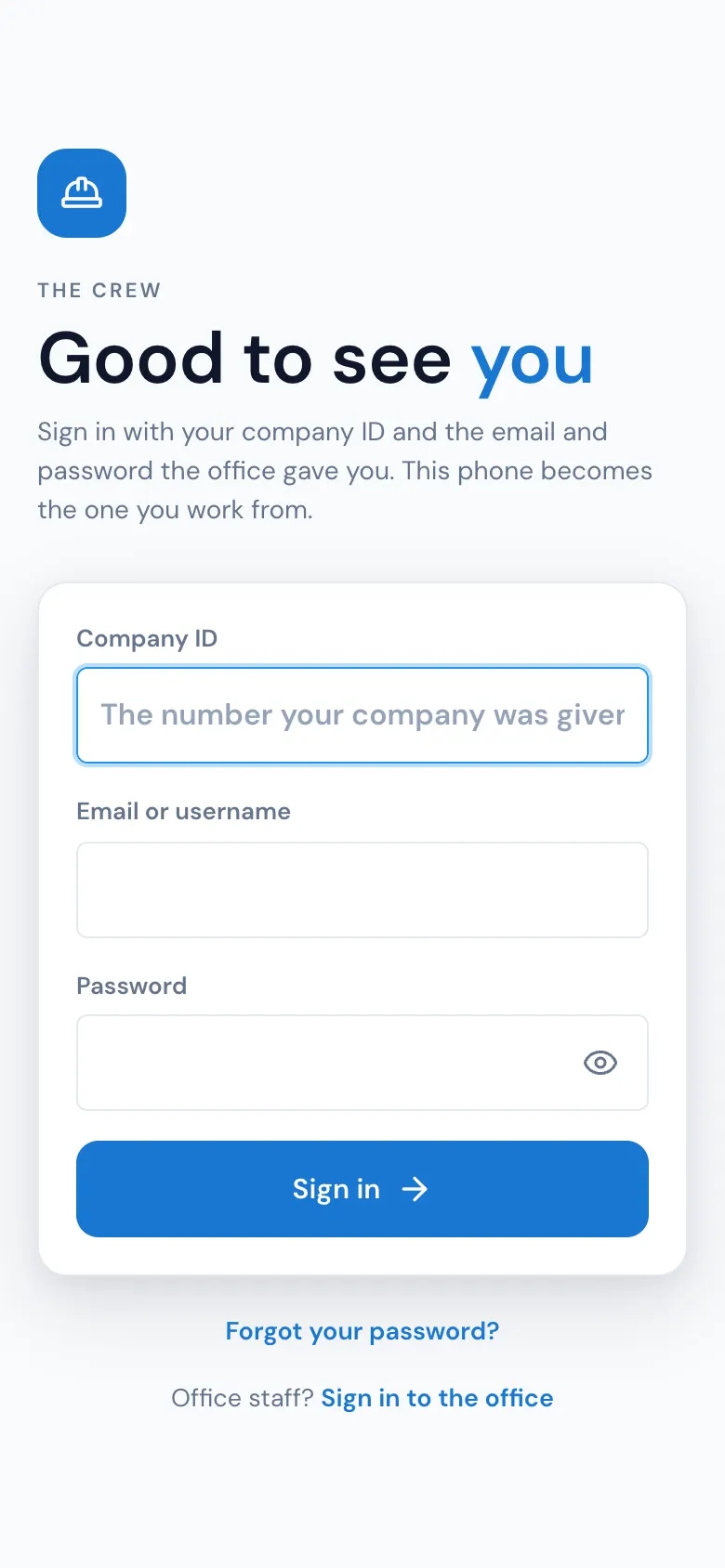
This phone becomes the one you work from. To sign in to a different company, press Sign in to a different company.
Face ID or your fingerprint
If your phone has Face ID, Touch ID or a fingerprint set up, the app asks after your first password sign-in: Use Face ID to sign in next time? (the words follow your phone). Say Use Face ID and you stay signed in until 5:00 AM each day; after that, Face ID signs you back in. Your password always works too: press Or sign in with your password.
To turn it off, open the menu, then Edit Profile, and switch off Sign in with Face ID. To turn it on again, sign out and sign in with your password; the app asks you again.
One phone at a time
You can be signed in on one phone at a time. If you sign in on a second phone, the app shows Active Session: press Continue to sign out the other phone and use this one, or Cancel to leave things as they are.
Forgot your password?
- On the sign-in screen, press Forgot your password? A page opens.
- Type your Email and Company ID, then press Send the link.
- Open the email and follow its link.
- Type a New password, type it again, and press Change password.
- Go back to the app and sign in.
Edit Profile
Open the menu (top right) and press Edit Profile. It shows your full name, username or email, phone and position. The office keeps your name and phone: ask them to change anything here.
Office staff?
Press Sign in to the office under the sign-in card. It opens the office in your browser.
If something goes wrong
- The information entered does not match our records. — check the Company ID, username and password.
- No connection. Try again when you have signal.
- This company's MoveBoard account is no longer active. Contact your company. — your company's account is closed; call your office.