 MoveBoard
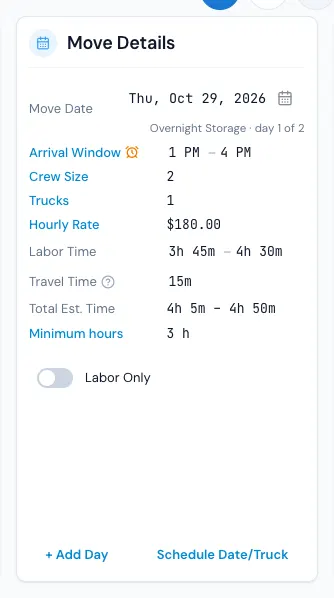
Move Details is the day itself: when it is, when the crew arrives, how many movers and trucks, the rate, and how long it takes. Every change re-prices the order on screen at once and is written with SAVE.
The rows
- Move Date — a date box right on the card. On a multi-day move it also says which day this is ("day 2 of 3"), the nights since the day before, and how many movers are already out on the day.
- Arrival Window — when the crew is due at the door. The two times are lists on the card; press the blue label for the full pop-up (below). TBD means no arrival time is set yet; when the truck has a start time, it shows under TBD (for example Truck start 8:00 AM - 10:00 AM). An orange clock means the customer asked for a time of their own — rest on it to read it.
- Crew Size — press the number to pick another crew straight from the list, or press the Crew Size label to open Edit Crew Size with each choice's hourly rate. The trucks follow the crew size unless you set them yourself. A crew you pick stays when the size changes (below).
- Trucks — how many trucks. It reads Trucks (not included) when the service doesn't include a truck.
In the Edit Crew Size and Edit Trucks lists, the count your calculator settings suggest is black and every other choice is red, so you can still see the suggestion after you pick something else. The price beside each choice is the hourly rate the day will have once you pick it, with everything else on the day as it stands (for example the trucks you set yourself).
- Hourly Rate — click the amount (for example $179.00) and type a new rate right there; Enter or clicking away keeps it, Esc leaves it as it was. A typed rate shows red with a back arrow that puts the calculated rate back. Click the words Hourly Rate for Edit Hourly Rate: a New Rate ($) and, if you like, when it expires (Rate Expires).
- Travel Rate — shown when your company charges travel at its own rate.
- Labor Time — the hours, from and to. Picking a time takes it over from the calculator. Pick a from above the to and the to moves up with it (9h makes it 9h – 9h); pick a to below the from and the from comes down with it.
- Estimated Travel Time — the driving between the office, the stops and back. Your company may call it something else.
- Double Driving Time — when your company doubles the driving for the price, this row sets it and the row above only shows the trip. It is the drive from the pickup to the destination, doubled, and the small grey words under it name that drive (Pickup → destination 19 min × 2, or 15 min × 2 when your company rounds the drive before doubling it). A time you pick here stays — 0 charges no double drive time — and shows red with the calculated time and an arrow beside it; press the arrow to go back to the calculated time.
- Total Est. Time — labor plus travel.
- Minimum hours — the least the customer pays for. Press it to set another, with an optional expiry; the arrow next to it goes back to the calculated minimum.
- Labor Only — a switch, on services and days that allow it.
Long-distance days have a Pickup | Delivery switch in the card's title and their own rows; flat-rate days show their flat-rate rows instead of the hourly ones.
The calculator
The calculator works out the crew, trucks, labor and travel from the size, the addresses and your settings. When you set a figure yourself it turns red, and a small arrow beside it shows what the calculator says. Press the arrow to put the calculator's figure back. The Calculator on / off label on Quote Details shows where the order stands.
Asking before the calculator goes off
With Let the office turn the calculator off on (Settings › Sales & orders › New order defaults; on unless your company switches it off), changing the Labor Time, Crew Size, Trucks or Hourly Rate yourself while the calculator is on asks Turn the calculator off for this order?
- Yes — the calculator goes off for the order: the labor time stays as it is now and your change goes in.
- No, keep it on — the calculator stays on. A new crew, trucks or rate still goes in and the calculator works the hours out again with it. A labor time stays the calculator's.
The Calculator label on Quote Details is then a switch too.
What you type stays until you press its arrow
A Crew Size, Trucks count, Hourly Rate or Labor Time you set yourself is yours: changing the Size of Move, the inventory, the date, the addresses or the entrances never changes it, before or after SAVE. Only its arrow gives it back to the calculator. Everything you did not set keeps following the calculator, so a new size still moves the crew, the trucks and the rate you never touched.
- The calculator's own figures keep moving beside yours: after a new size the arrow shows what the calculator says for that size, so you can see the difference before you decide.
- A crew or truck count you pick is yours even when it happens to be the calculator's number at that moment. It shows black while the two agree and turns red, with its arrow, as soon as they differ.
- Labor Time you pick switches the calculator off for the hours; the arrow next to it hands them back.
The arrival window pop-up
Press Arrival Window to see:
- Requested Arrival Window — what the customer asked for. It's a record and can't be changed.
- Set Time By — Select Time from Settings (your preset windows), Custom Time (any From and To), or TBD. With TBD you can still give the truck a Truck Start Time From and To, which dispatch plans by. They are saved with the order and show on the card under TBD.
Which of the three you see depends on Settings › Sales & orders › Arrival windows.
At the foot
- + Add Day — adds another day to the move. See Multi-day moves.
- Schedule Date/Truck — when your company keeps the truck schedule in a pop-up. See Schedule date and truck.
When the card is locked
Once a day's job has started, or the day is completed, the card for that day turns grey and takes no changes. What really happened is entered in the closing.
If something goes wrong
- By selecting a new move date, you will need to reassign your truck to this move — the day already holds a truck. Ok lets the truck go so you can pick one for the new date; Cancel keeps the old date.
- The time in storage is more than the maximum allotted number of months for a storage tenant from your current settings. Do you wish to proceed? — a moving-and-storage date further out than your storage settings allow.
- The delivery day of an overnight storage move has to come after the day of the load.