 MoveBoard
When dispatch puts you on a crew and sends it, you get a text, and the office waits for your answer.
Answer from Home
- Open the Movers App. Under The office is waiting for your answer there's a card for each day you're scheduled, with Start At — the time to report.
- Press CONFIRM. If your company lets crews decline, you'll also see DECLINE.
Your answer shows straight away: the card becomes a green bar ✓ Start At: 7:00 AM (or red for a decline) and the day leaves the waiting list. On the office's Crew Schedule your name turns green or red at the same moment.
Before you answer you see only the day and the start time — the job details come once you're on it.
Answer from the Tracker
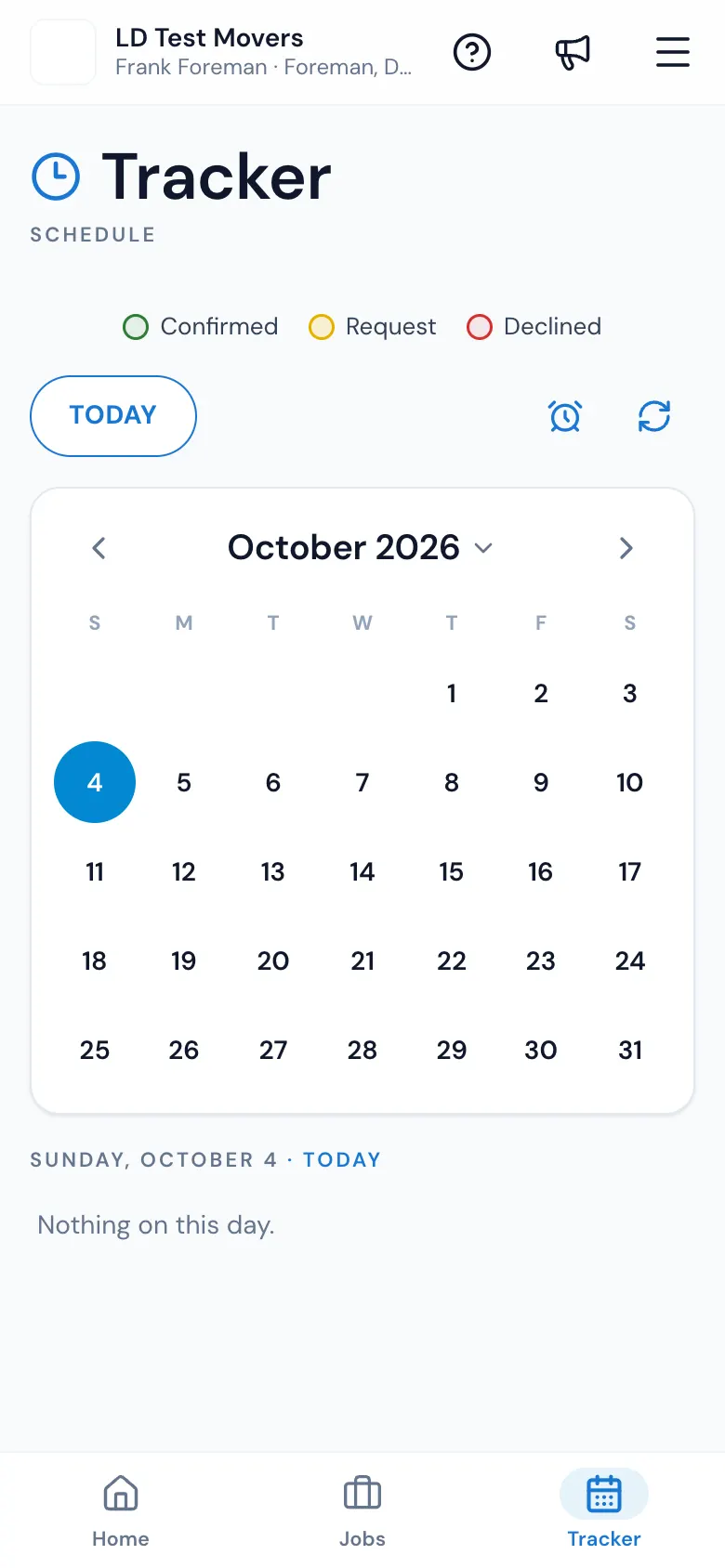
- Press Tracker at the bottom.
- Days waiting for your answer are circled yellow; confirmed days green; declined days red; a grey day has time off.
- Tap a day. Each crew you're on that day shows Start At with CONFIRM (and DECLINE when allowed).
If you work for more than one branch, each card says Company: above it.
Changed your mind?
Once you've answered, the buttons go away. Call the office — dispatch can set your answer for you, or send your day again with Resend.
Can I decline?
Only if your company switched on Foreman can decline schedule (Settings › Crew › Foreman app). Otherwise CONFIRM is the only button, and you call the office if you can't make it.
If something goes wrong
- That did not save. Try again. — your answer is put back; try once more.
- No connection. Try again when you have signal.