 MoveBoard
The day sheet puts every job of the day on paper: when, who, where from, where to, which crew and which trucks.
Print it
- Open Dispatch and go to the day you want.
- Point at (or press) the printer icon at the top right of the board.
- Pick an order: - Print sorted jobs by order of trucks — each truck's jobs together, which is what the yard wants; - Print sorted jobs by move time — in the order they start, which is what the office wants.
- The day sheet opens. Press Print and use your browser's print window (or save it as a PDF).
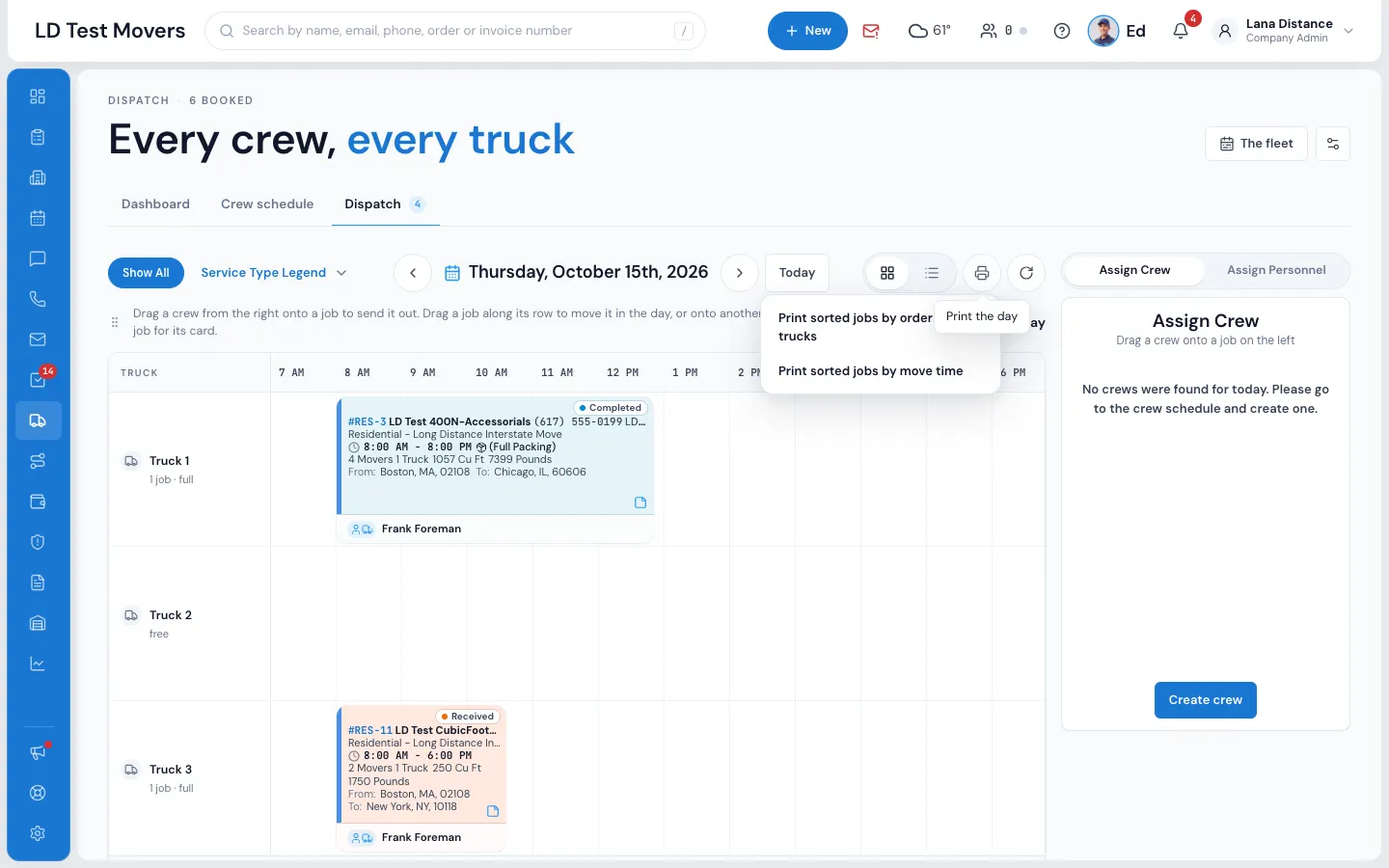
On the sheet itself you can switch between By truck and By move time before printing.
A day with no jobs says There is nothing to print in the menu.
What's on the sheet
For each job:
- A grey header row — the date and weekday (on the first job), the service, Job and the order number with its order status and job status, then From, To and Crew.
- The job row — the arrival window, the customer's name and phone, the two addresses and the crew's names. A job with nobody on it says Not assigned — the first thing the yard looks for.
- One row per truck — the truck's name and the load's weight and volume.
The sheet prints without the menu or buttons.
Who can print
Anyone who can open Dispatch can print the day sheet.