 MoveBoard
The fleet shows one month: a row per truck, a column per day. At a glance you see which trucks are working and which are off the road.
Open it
- Open Dispatch.
- Press The fleet at the top right.
Use the arrows to go a month back or forward, This month to come back, and The board to return to Dispatch.
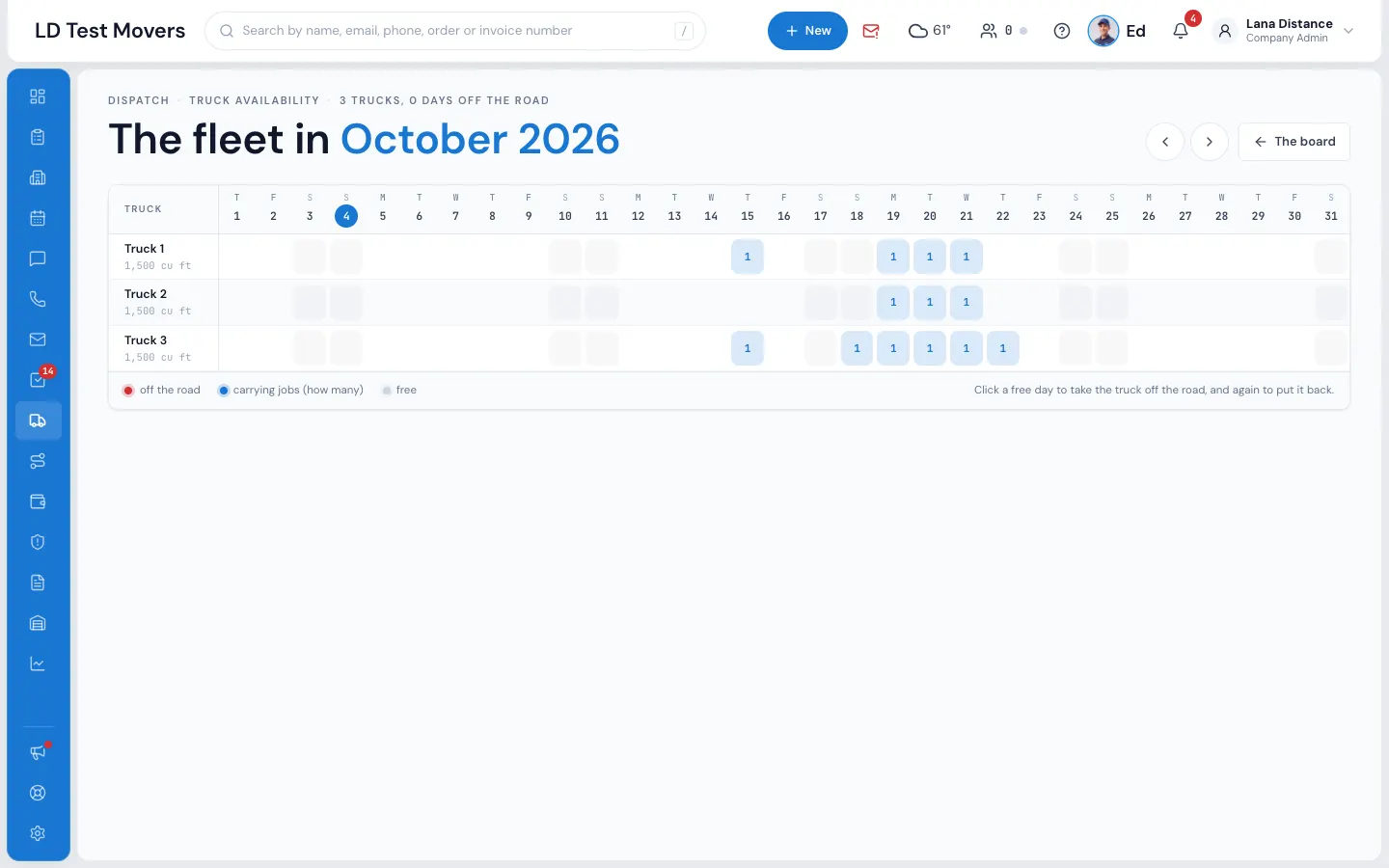
Reading it
- Under each truck's name: its size in cubic feet (or placeholder for a truck with no size, such as the Unassigned truck).
- A green cell with a number — the truck is carrying that many jobs that day. Point at it to see which orders.
- A red × — off the road that day.
- A red × can also be a day that still has jobs on it (marked off before the jobs were moved): point at it to see the orders, and fix it in Settings › Dispatch › Trucks › Truck Availability, or click it to put the truck back.
- An empty cell — free.
- Today's date is circled at the top, and weekends are shaded.
The header says how many trucks you have and how many truck-days are off the road this month.
Take a truck off the road
- Click a free day on the truck's row. It turns red at once.
- Click it again to put the truck back.
A truck that's off the road isn't on that day's schedule and can't be put on a job that day — MoveBoard refuses with Truck #19 is out of service on Sat, Oct 24. Put the job on another truck.
You can't take a truck off the road on a day it's already carrying a job (booked, reserved or Can Book Online): MoveBoard says That truck has 2 jobs that day (#13891, #13648) — move them to another truck first. See Trucks out of service.
If something goes wrong
- That truck has … jobs that day (…) — move them to another truck first.
- That could not be saved. — the cell goes back; check the connection and try again.