 MoveBoard
On the bill of lading, the customer signs to agree the times you worked. Signed times are what the customer is charged for.
The bill in the Movers App
Open the Bill of Lading tile. The bill opens on its front: your company's name and the contract, the addresses, the rate, the signature boxes (TAP TO SIGN) and the costs. A pill at the top says All saved or Saved once a change is kept.
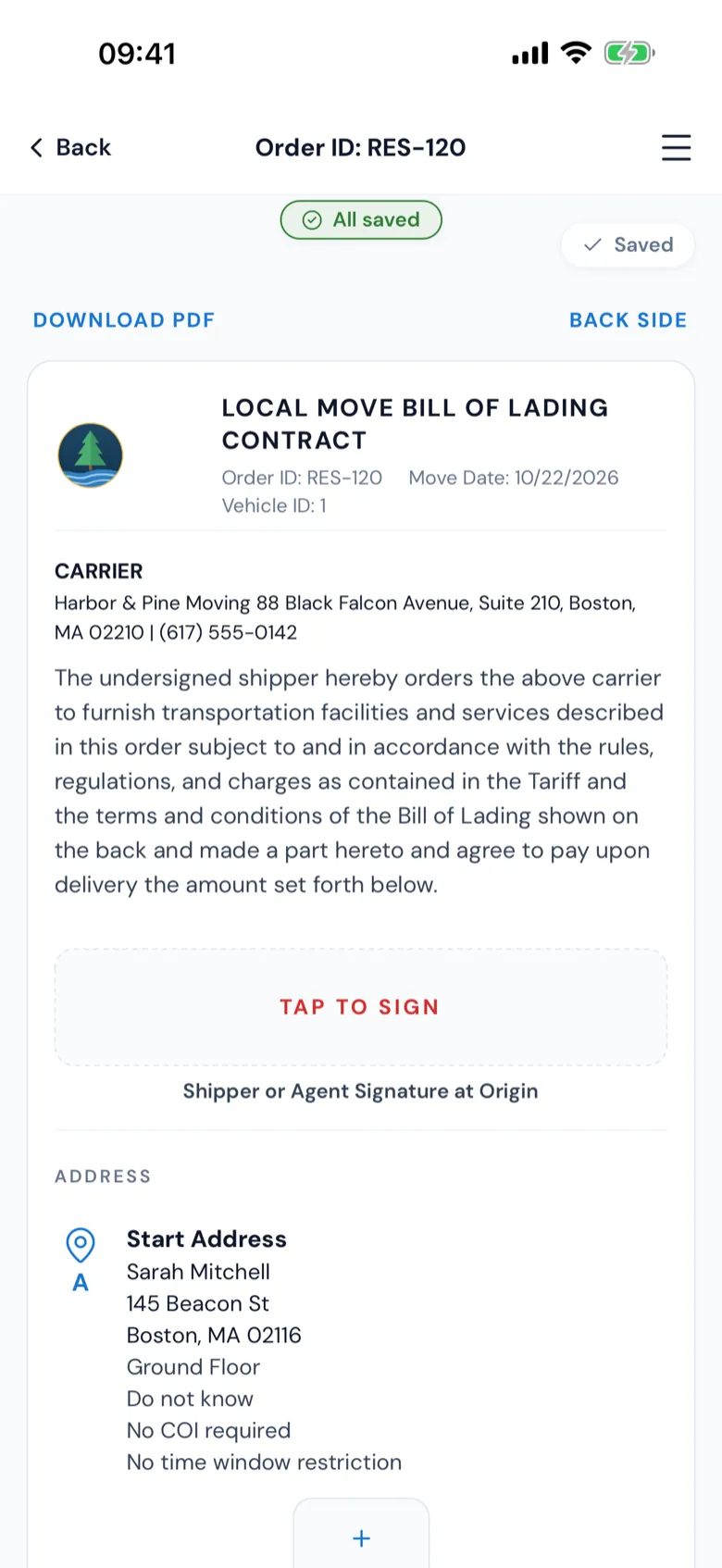
- BACK SIDE shows the terms and conditions on the back. It then reads FRONT SIDE to bring you back.
- DOWNLOAD PDF makes the bill's PDF and opens your phone's share sheet, so you can open, save or send it.
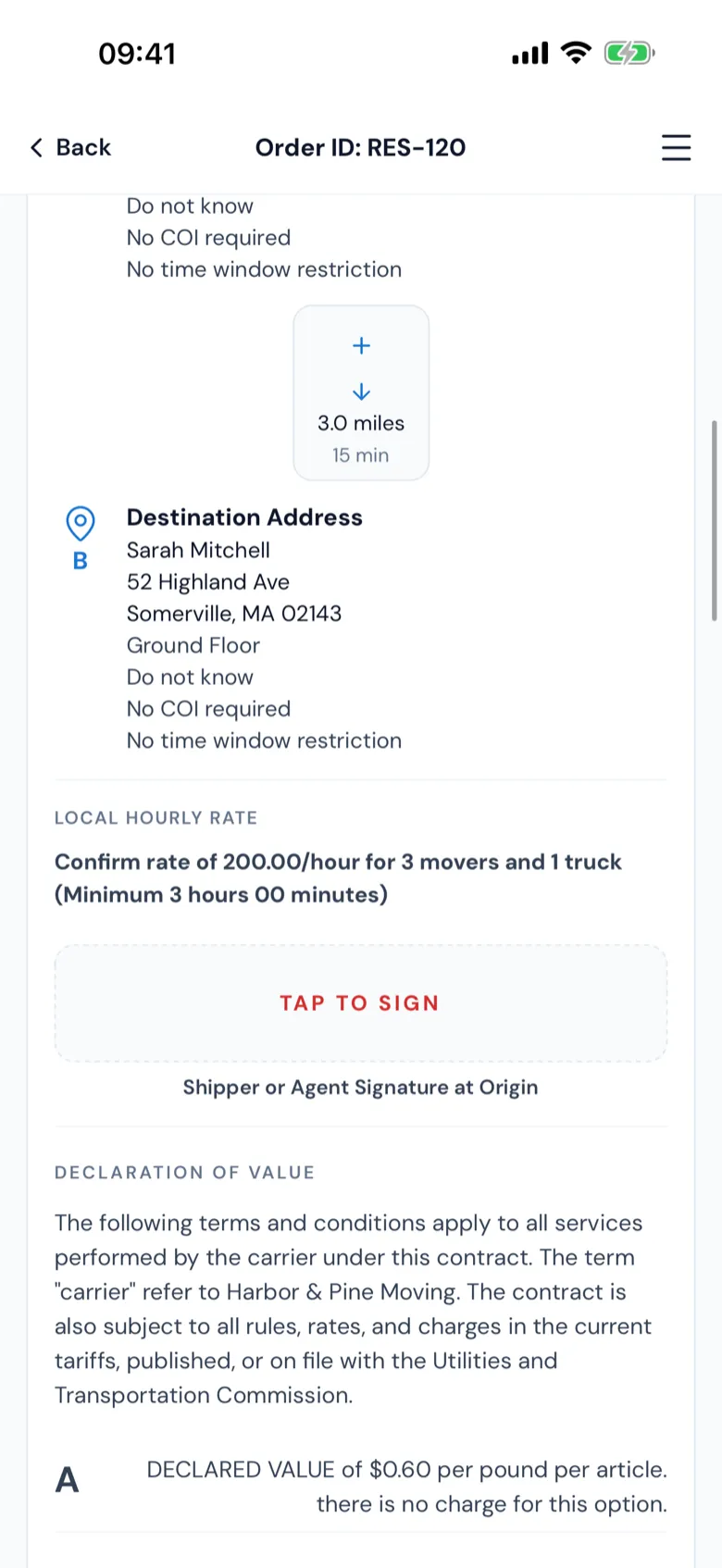
- Scroll down for the addresses (A, B …), the hourly rate, the declaration of value, the labor and the cost breakdown.
Sign a time
- Pick the time on the bill (Start Time: or End Time:).
- Press the signature box under it (Not signed).
- Hand the phone to the customer. The signature window opens — turn the phone sideways for more room.
- The customer signs and presses Save (Clear starts again, Cancel closes without signing).
The signature shows in the box at once; Saving… under it means it's still being sent.
Once for the job, or at every address
Customer signs every stop decides how many boxes there are:
- Off — the customer signs once when work starts and once when it ends.
- On — the customer signs the start and end at each address: Start Address Start Time:, Start Address End Time:, then each stop, then Destination Address Start Time: and Destination Address End time:.
Your company sets it per move type in Settings › Documents & bill of lading › Bill of lading rules. Dispatch can change it for one job (the job's gear on the Dispatch board). Set automatically, it's off when the job has only one customer address. With the timer (Start Button), there's always one pair.
Signatures go in order
The customer signs from top to bottom. Pressing a box while an earlier required one is still empty scrolls to that one and outlines it — Please sign the signatures in order. A box marked (optional) can be skipped.
If a time isn't picked yet, its list is outlined in red and scrolled to; pick the time, then sign.
Times go in order
Every time after the job's first start comes after the time before it: a stop's end after its start, the next stop's start after that end.
- Only signed times count. A time nobody signed yet is just a note — it never stops you picking another time.
- If you pick a time that runs over another stop's unsigned time, your time saves and the other one is cleared. A note under the stop says so, for example Destination start (12:30 PM) cleared — it wasn't signed. The same line goes in the order's log. Pick that time again when you get there.
- A signed time is never cleared. The lists only offer times that fit around it. If no end fits, the bill says why, for example The destination's start is signed at 12:30 PM. Pick an end before it.
- If a time still can't be saved, the message names the stop and the time, for example The destination's start is 12:30 PM — the origin's end must be before it.
With the timer (Start Button), the timer's times always count.
The office's Foreman Page uses the same bill, so the same rules apply there.
What a signature locks
- Once the start is signed, the start time can't be changed.
- Once the end is signed, neither time can be changed.
The job moves with the signatures
- The first signature moves the job to Loading (Unloading on an unloading-only job).
- The end of the first address moves it to On The Way.
- The destination's signatures move it to Unloading.
You can also tap On The Way and Unloading on the status chain yourself.
Travel time: there and back
Under the times, the Travel Time row (Double Driving Time at some companies) shows the travel, its hourly rate and its charge. The time is a blue link.
- Tap the time (for example 2 h 45 min).
- Pick Office → first address (the drive there) and Last address → office (the drive back), in 15-minute steps.
- Press Save (or Cancel to leave it as it was).
The row shows the total, the charge for it (the total × the travel rate, with the same rounding and minimum hours as before) and, in small grey words under it, both parts: To: 1 h 30 min · Back: 1 h 15 min. There and back together can be at most a day.
If only one total was on the bill before, the pop-up opens with all of it on Office → first address, Last address → office empty, and says so — set the way back and Save.
Double Driving Time. When your company charges double drive time, the row is the drive from the pickup to the destination, doubled — the drive to the first address and back from the last are not part of it. Under the row, in small grey words: Pickup → destination 19 min × 2 (15 min × 2 when your company rounds the drive before doubling it). Tap the time to see that drive and pick the double drive time in one list, then Save.
The closing, the payroll, the quote and the reports keep using the total. The office sees the two parts in the closing's Move Details, right under Travel Time. The office's Foreman Page shows the same row. Once the bill is submitted (also after the office reopens it), or if you can't edit the bill, the travel time is shown but can't be changed.
Deleting a signature
A foreman can't delete a signature. An office manager, dispatcher, salesperson or admin can (the bin next to a signature), after Are you certain you wish to delete this sign? — and only if no later required signature is signed yet.
The last signature
When your company submits the contract by signatures, the last one asks first: Once this signature is signed, the contract will be completed and closed. Signing it submits the bill a second later — see Submit the bill of lading.