 MoveBoard
When an order is Can Book Online, the customer can reserve the move themselves: they open their link, pay the deposit, and the move is theirs. Text link sends them that link.
Send it
- Open the order. Its status must be Can Book Online (and saved).
- In Quote Details, find the Deposit row.
- Press Text link.
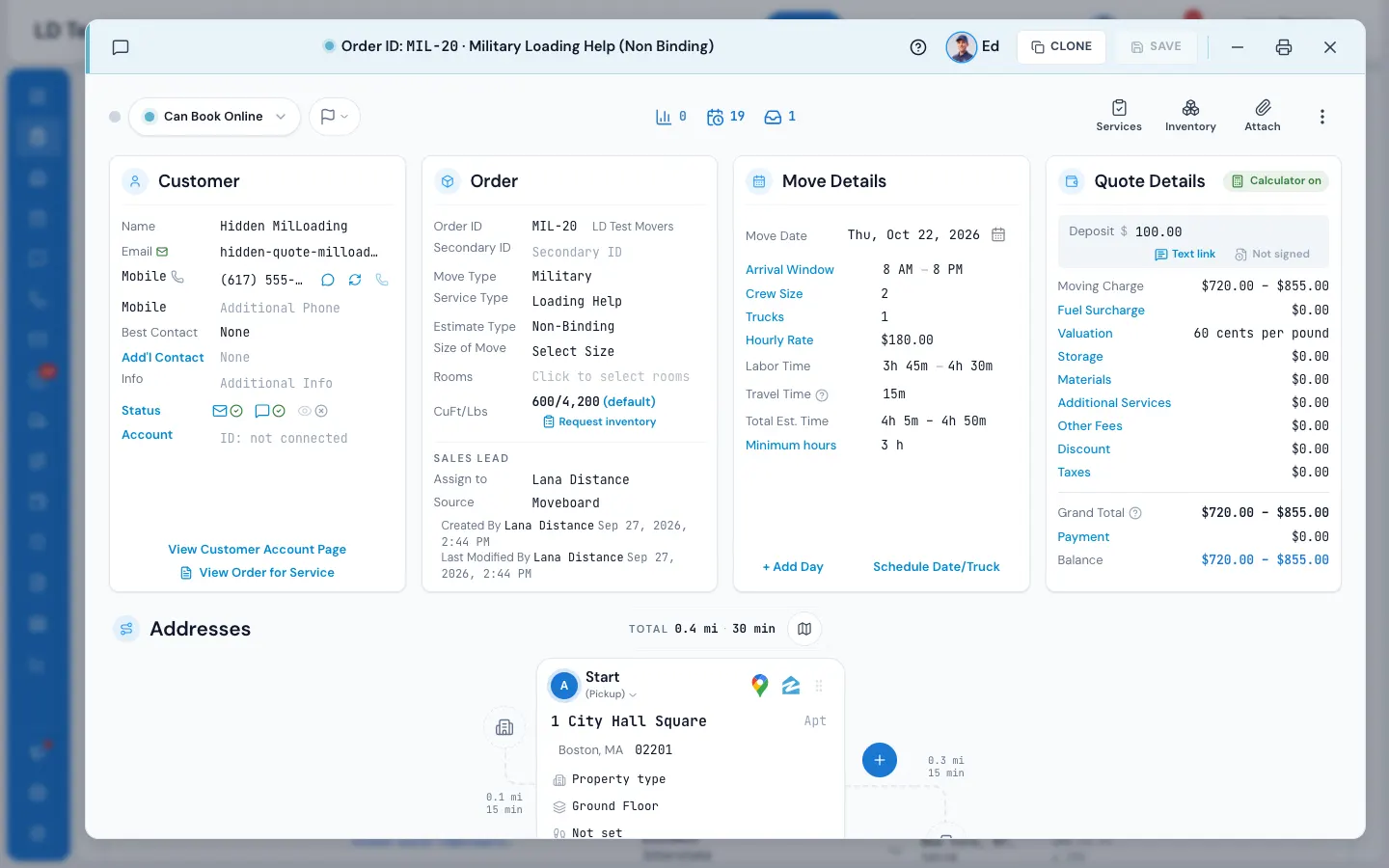
The link says Sending…, then Sent. Sending the link doesn't change the order's status — the order books itself when the customer pays.
What the customer gets
One text from you, using the template Deposit link (sent from the order), with the move date and their own secure link. The link opens their portal on your company's website address, where they pay the deposit and book.
Change the words in Settings › Communication › Templates: type deposit in the search and open Deposit link (sent from the order). It's a text, filed with your Can Book Online text. Hover over Text link and it tells you the same. Every branch has it: if yours didn't, it's added the first time you open Templates, with the standard words (the same words Text link sends until then). If the template is ever switched off or deleted, MoveBoard sends its standard words, so the customer still gets the link, and a template you deleted is never brought back.
The text appears in the conversation and the Order Log notes Deposit link texted and by whom.
If it doesn't send
MoveBoard tells you why in a Not sent pop-up. The common reasons:
- The deposit link is texted only while the order is Can Book Online. — change the status and save first.
- This move is already booked: there is no deposit link to send. — there's nothing left to reserve.
- The customer has no phone number on the order. — add a mobile number on the Customer card.
- The customer has replied STOP, the number can't receive texts, or texting isn't set up for your company — the pop-up says which.
A Saved, not sent yet pop-up means the text is kept and will go later (for example, when your workflow waits before sending); the pop-up says when.