 MoveBoard
A workflow is one sentence: when something happens, wait if you like, check only if something is true, then do something. Templates hold the words; workflows decide when they go.
Find them in Settings › Communication › Workflows.
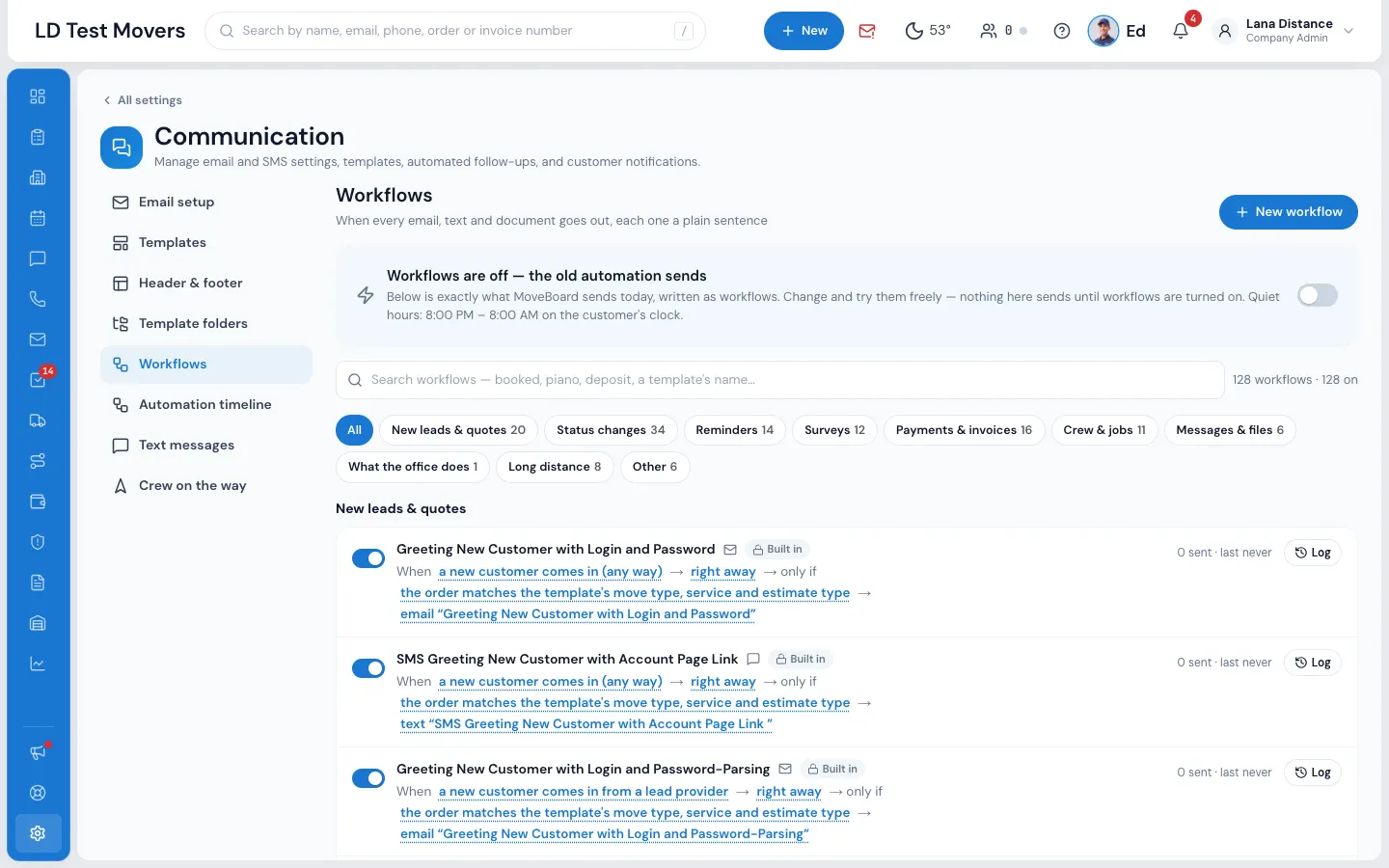
What you'll build
When an order is booked with a piano in the inventory, give the sales rep a task to confirm the piano's type, floor and stairs — an hour after booking, never at night.
1. Start from the example
- Press New workflow.
- Pick Piano care.
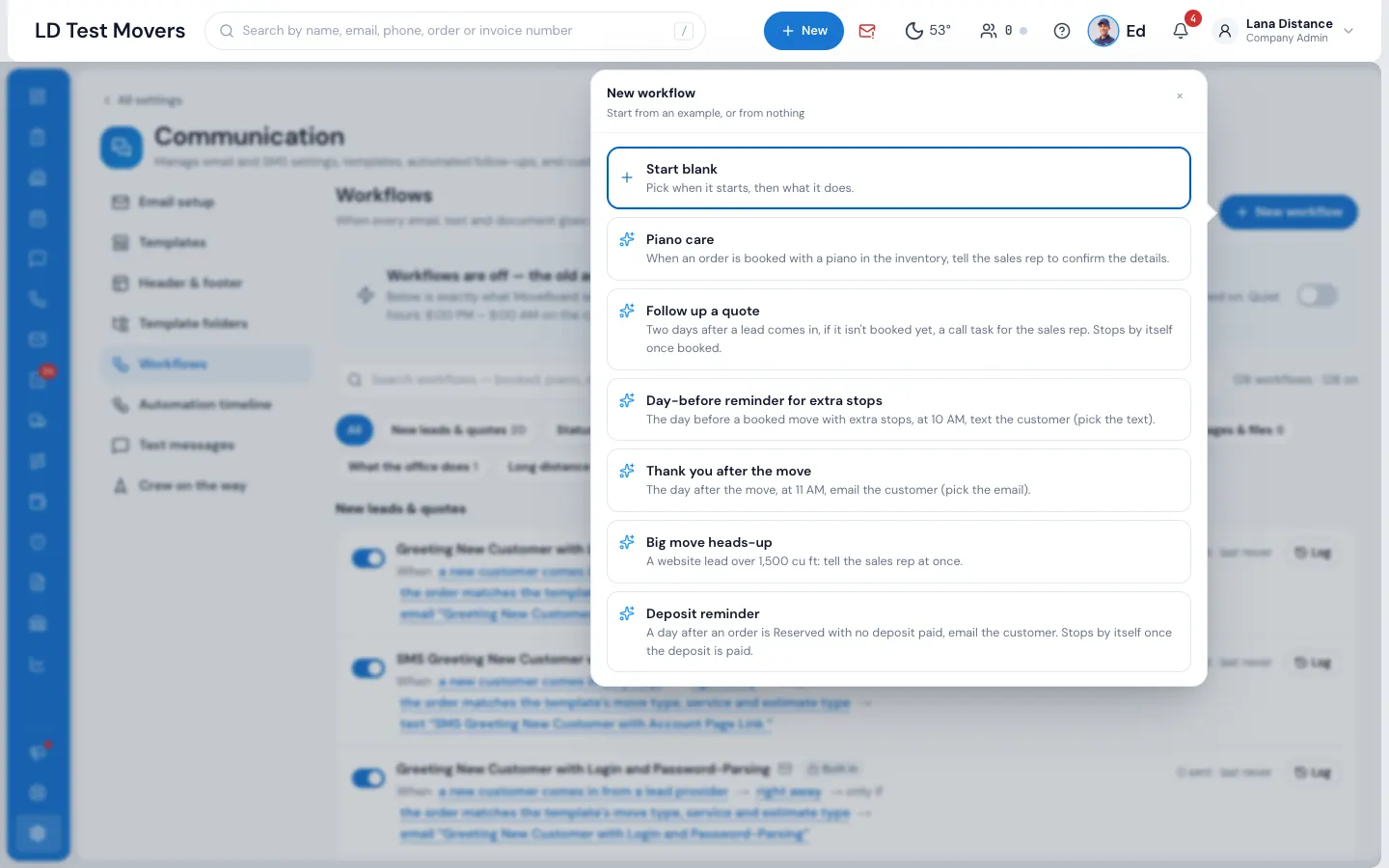
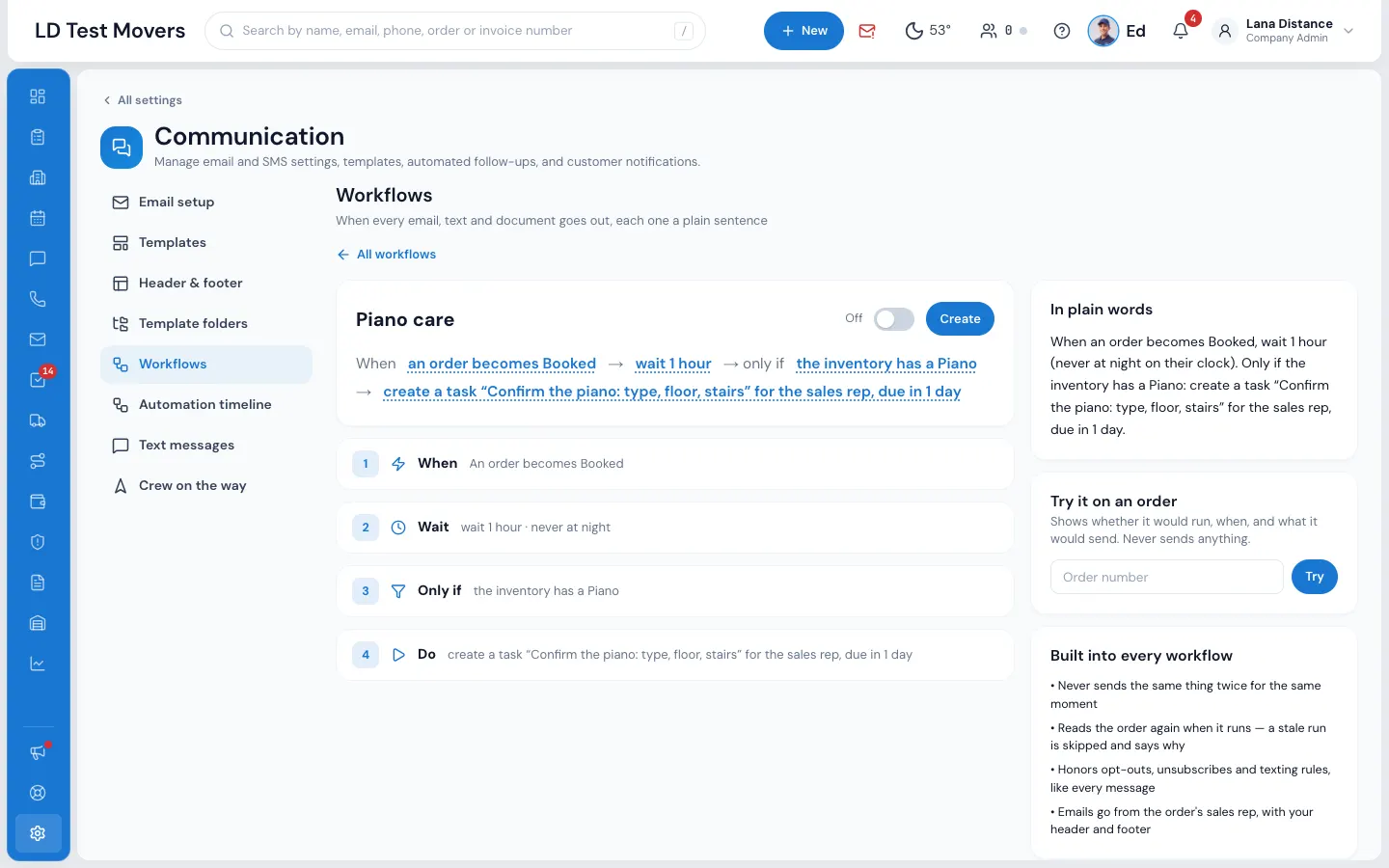
The example fills in all four parts for you:
- When — an order becomes Booked
- Wait — 1 hour, and never during the quiet hours in your company's time zone (8 PM – 8 AM)
- Only if — the inventory contains Piano
- Do — Create a task "Confirm the piano: type, floor, stairs" for the sales rep, due in one day
2. Make it yours
- When — search for any moment ("booked", "deposit", "signs"…) or a date on the order (the move date, the day it was booked…) with days before or after and a time.
- Wait — right away, a while, until a time of day, or until a date on the order.
- Only if — Add a condition: status, service, lead source, inventory items, cubic feet, money, documents, addresses and much more. Choose ALL of these or ANY of these. Stop by itself lists what cancels a waiting run — checked again just before it runs.
- Do — Add a step: send an email or a text, send the deposit link or the inventory link, send a document to sign, create a task, tell a teammate, change the status, flag the order, or give it to a sales rep. Steps run in order.
For the piano, you could add Tell a teammate → the dispatchers, so dispatch knows too. (Teammates hear through their own notification settings.)
3. Try it, then switch it on
- In Try it on an order, type an order number. MoveBoard shows whether the workflow would run, when, and what it would send. It never sends anything.
- Read In plain words — the whole rule as one sentence.
- Switch the workflow On and press Create.
Check what ran
Press Log on a workflow to see every run: what was sent, what was skipped and why, what's waiting and until when. On an order, the Order Log's workflow button shows the same for that order.