 MoveBoard
The Customer card is the first card in the order window. Every value is changed right where it is, and — like the rest of the window — waits for SAVE. Only linking the order to an account is saved at once.
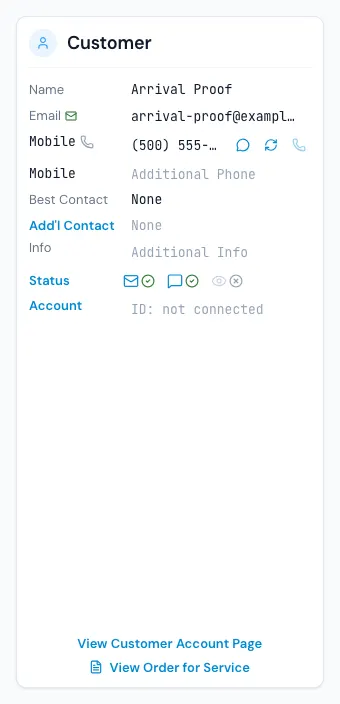
Name, email and phones
- Name — press it to change the first or last name. Each must be 2 to 32 characters.
- Email — type over it. A green mark means the customer is subscribed; the envelope beside it sends the Greeting New Customer email (after a warning to check the details first). If you change a saved email, MoveBoard offers to send the greeting to the new address.
- Primary Phone and Additional Phone — they format themselves as you type and take 10 digits. The word in front (Mobile, Home, Office, Other) is a list; an Office number also gets an extension box. Beside each number: - an icon showing what the carrier says it is (a mobile that takes texts, a landline…), - Retest phone number to ask the carrier again, - Call with RingCentral — it asks "Call … at …?" first, - a button to send the greeting text.
Customer has no email
Some customers have no email at all. Rather than typing a made-up address (user@example.com and the like), where emails never arrive, tick the small box right after the word Email, on the left of the Email box. It has no words of its own: rest the pointer on it (or reach it with the Tab key, or press and hold it on a phone) and it says "Customer has no email — tick to book this order without an email. Nothing is emailed for this order."
The tick shows only while the Email box is empty, and while it is ticked. A customer with an email never sees it: typing an email hides it, and emptying the box brings it back.
When it is ticked:
- the Email box is greyed and shows No email;
- if you type an email in it after all, the tick goes away and the order is an ordinary order with that email once you press SAVE;
- Booked, Reserved and Can Book Online no longer ask for an email — the first name, last name and phone are still required;
- nothing is emailed for this order: no workflow or automatic email, no quote or booking confirmation, no invoice or receipt. Each one is skipped with the line "No email: the customer has none" (in the workflow's run log, or as the answer to the button you pressed). Texts still go, and links you text the customer work as before;
- the order keeps its own customer: it is never matched to another customer by email.
If the customer gets an email later, type the real email in the Email box (the tick goes away by itself) and press SAVE. From then on everything works as usual — and as usual, if another customer of yours already has that email, the order moves onto that customer's record.
A made-up email
The made-up addresses are user@example.com, test@test.com, anything @example.com, @example.org or @draftorder.com, and anything that starts with noemail@ or none@.
They are allowed, with a warning. When you press SAVE to make an order Booked, Reserved or Can Book Online with one (or type one on an order that already is), MoveBoard asks first:
"This email looks made up (user@example.com). Emails to the customer won't arrive. Add their real email, or empty the Email box and tick 'Customer has no email'."
- Book anyway (or Reserve anyway / Save anyway) saves the order with that email.
- Fix the email takes you back to the order, with nothing saved, so you can type the real email or tick the box.
Changing many orders at once, sending the quote, and asking Ed go ahead the same way and show the same warning for each order with a made-up email.
A made-up address never matches another customer: two orders typed with user@example.com stay two customers, and changing an order's email to one never moves the order onto another customer's record.
Best Contact, Add'l Contact and Info
- Best Contact — the best way (Email, Text, Phone) and time (Morning, Afternoon, Evening) to reach them.
- Add'l Contact — press the blue word to add someone else who should hear about the move, such as a spouse or an assistant: first and last name, email address and phone. Leave every box empty to take them off.
- Info — anything else, up to 2,000 characters.
Status
Press Status to open Contact status, three switches:
- Email status — whether MoveBoard emails this customer. Needs an email address.
- SMS status — whether MoveBoard texts them. Needs a phone number.
- Portal visibility — whether they see their quote in their portal.
The three icons on the card show which are on.
Account
Account shows the business or personal account the order belongs to, or ID: not connected. Press Account to open Link order: choose Corporate, Affiliate or Personal, search the account, and press Link it. This is saved straight away. Unlink takes it off again, for people allowed to detach orders from accounts — the account's discount comes off and the payment option goes back to your company's default.
The links at the foot
- View Customer Account Page — opens the customer's portal in a new tab, on your company's website when it has one.
- View Order for Service — a read-only copy of the Order for Service the customer sees and signs.
When the card is locked
Once the job has started, the card is read-only — changes to what happened on the day are made in the closing. You can still link or unlink an account.
If something goes wrong
- First Name is a required field / Last Name must be at least 2 characters — fix the name before saving.
- Phone number must have 10 digits
- That email address does not look right.
- This email looks made up (…). Emails to the customer won't arrive. — a warning, not a refusal: press Book anyway to keep that email, or Fix the email to go back. See A made-up email.
- Customer has no email is being set up for your company. Press SAVE again in a moment. — the first time anyone in your company ticks the box; press SAVE again.
- Additional Info must be at most 2000 characters
- Save the changes first (on the greeting button) — the greeting goes to the saved email and phone, so save your edits first.