 MoveBoard
The office signs in at the MoveBoard sign-in page with three things: your company ID, your email (or username) and your password.
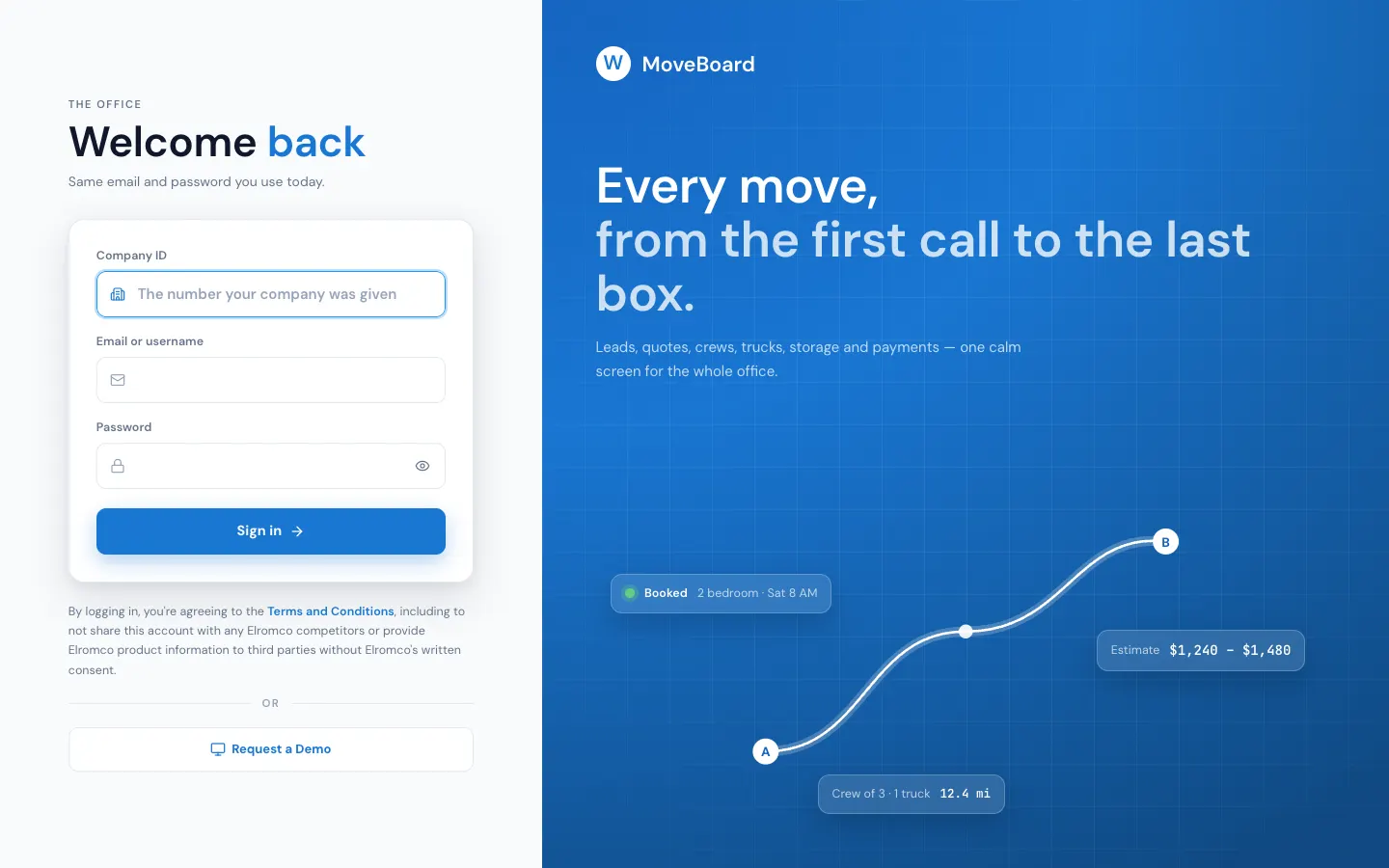
Sign in
- Open the sign-in page.
- Type your Company ID — the number your company was given. MoveBoard remembers it on this computer after your first good sign-in, and shows Signing in to with your company's name. To use another company, press the pencil next to it.
- Type your Email or username and your password.
- Press Sign in.
MoveBoard opens your dashboard. If you only work as a foreman or mover, it takes you straight to the Movers App instead.
Your first password
You never pick a password on the sign-in page. It comes from a link:
- A new company's owner gets an invitation email. The link opens Welcome aboard: type a password twice and press Set my password, then Sign in.
- Everyone else gets a link from their office (an admin presses Send a link to set the password on your user). It opens Your password: type it twice, press Set my password, then Sign in.
A password needs at least 4 characters and can be up to 128. A link from your office works once and runs out after 48 hours; a newer link replaces an older one.
You stay signed in
Once you sign in on a computer or phone, you stay signed in there while you use it — a break, a closed laptop or a phone in your pocket doesn't sign you out. A computer or phone you don't use for 24 hours asks you to sign in again.
One computer or phone at a time
Depending on your plan, MoveBoard may allow you to be signed in on only one computer or phone at a time — your phone and your desk computer count as two — and your company may have a limit on how many people are signed in at once.
- Signed in somewhere else? If you used the other computer or phone in the last 45 minutes, you see Active Session. Press Continue to sign out the other one and sign in here, or Cancel to stop. If you haven't used it for longer, MoveBoard signs it out without asking.
- Company limit reached? You see "You have reached the maximum number of concurrent sessions." Press Close — someone else needs to log out first.
When MoveBoard signs you out
MoveBoard signs you out only when you sign in on another computer or phone (on a plan with one sign-in per person), when your password changes or your office switches you off, or after 24 hours without use. A card opens over the page:
- You were signed out — you signed in on another computer or phone, and your plan allows one sign-in per person at a time.
- Your session timed out — for your security.
Type your password and press Sign in. You pick up right where you left off: your open order windows and anything you typed stay on the screen. Not you? Press Use another account to go to the full sign-in page.
If the page was reloaded instead (a phone often reloads a page you come back to), you land on the sign-in page, which says why. After you sign in, MoveBoard takes you back to the page you were on.
Log out yourself from the menu under your name: Log out.
If something goes wrong
| What you see | What it means |
|---|---|
| Wrong company ID, email or password. | One of the three is wrong. Check the company ID first. |
| Enter your company ID: the number your company was given. | The company ID is empty or isn't a number. |
| Too many attempts. Please wait a while and try again. | Several wrong tries in a row. Wait, then try again. |
| No connection. Try again in a moment. | Your computer couldn't reach MoveBoard. |
| This company's MoveBoard account is no longer active. Contact your company. | Your company's account is closed (canceled or suspended). Ask your company's owner. |
| The two passwords do not match. | On a password link: type the same password twice. |
| This link has run out or was already used. Ask your office to send a new one. | The set-password link is older than 48 hours, used, or replaced. |