 MoveBoard
Travel time is the crew's time on the road between your office and the job. Settings › Pricing & calculator › Travel Time decides how it is measured and charged on hourly moves. In the settings, A is the pickup, B the delivery and C your company's address.
Travel Time Charge
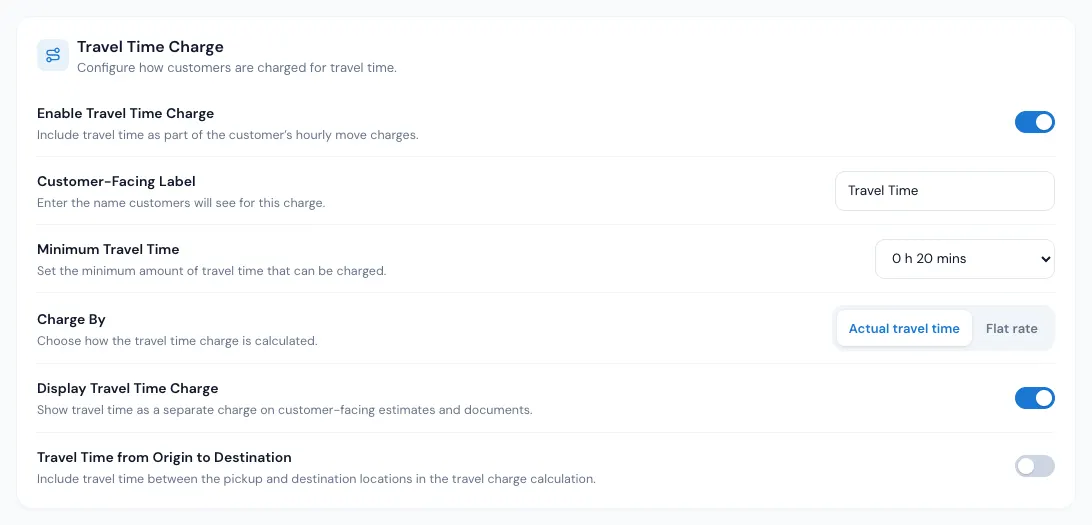
- Enable Travel Time Charge — when on, travel is billed at the travel rate, and the drive between the customer's addresses is added to the labor time.
- Customer-Facing Label — what customers see (for example "Estimated Travel Time").
- Minimum Travel Time — travel is never charged below this.
- Charge By — Actual travel time (measured as below) or Flat rate: a ZIP code, a Radius and a Time. With a flat rate, each started radius of distance from your office to the pickup adds that time. Radius 10 miles, Time 30 minutes, pickup 23 miles away: 3 × 30 = 1:30.
- Display Travel Time Charge — shows the travel as its own line. With travel rates different from labor rates, the Quote Details card then shows Labor Charge and Travel Time Charge instead of one Moving Charge.
- Travel Time from Origin to Destination — the travel charged is the drive from the pickup to the delivery.
How the trip is measured
Pick one way:
| Way | What counts |
|---|---|
| Way 1 | One direction: Shortest, Longest, From C to A or From B to C |
| Way 2 | From C to A plus from B to C |
| Way 3 | All of it: C to A, A to B and B to C |
| Way 4 | From A to B |
Example: office to pickup 20 minutes, pickup to delivery 30, delivery back to the office 25. Way 1 Longest = 0:25; Way 2 = 0:45; Way 3 = 1:15; Way 4 = 0:30.
Truck Average Speed
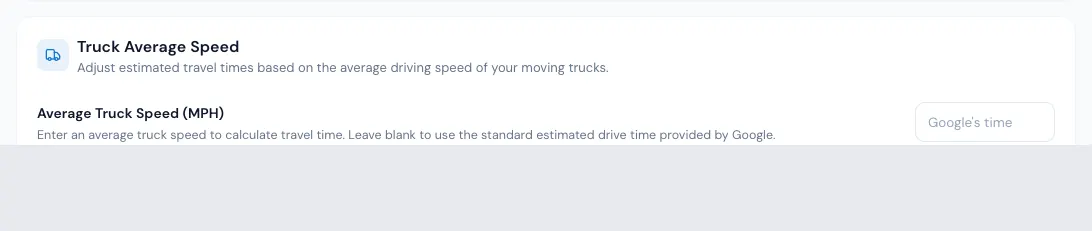
Google's times are for a car. Type your trucks' Average Truck Speed and each leg takes whichever is longer: Google's time, or the distance at your truck's speed. Boston to New York is 215 miles; Google says 3:30, at 45 mph a truck takes about 4:47 — so 4:47 is used. Leave it blank to keep Google's times.
When you save a new speed, the open orders (not Reserved or Booked, not past) are repriced in the background, and the page shows how far it has got. See When a settings change reprices orders.
Driving time and double drive time
- Add Driving to Travel Time — on longer trips, the drive between the customer's addresses goes into the travel time instead of the labor time. Only when the distance is more than sets the trip length (0 = always).
- Use Double Drive Time — the drive between the addresses (from the pickup to the destination) is charged twice, never below Minimum double drive time. It has its own Label. On an order it shows as its own row under the travel time, with the drive it doubles in small grey words under it.
Double drive time is charged at the travel rate with Enable Travel Time Charge off — that switch is only for charging the trip from and back to your office, and switching it on switches double drive time off. The trip to the first address and back from the last is never part of double drive time, and the way the trip is measured (Way 1 to Way 4) doesn't change it: those only decide the Estimated Travel Time shown above it.
How the doubled drive goes into quarter hours is your choice: Round the drive before doubling it (under Use Double Drive Time) is off unless you switch it on. - Off — the drive is doubled, then rounded: an 18:51 drive doubled is 37:42, charged 0:45; a 15:07 drive doubled is 30:14, charged 0:30. - On — the drive is rounded first, the way the Addresses card shows it, then doubled: an 18:51 drive is 0:15, doubled 0:30; a 21:00 drive is 0:30, doubled 1:00.
Your Minimum double drive time applies after doubling either way. Saved orders keep their numbers until they are saved again; a Reserved or Booked order keeps what the customer agreed.
With Double Drive Time on, the drive between the addresses is charged only as double drive time — on the quote, the bill of lading and the closing it is never counted in the labor time as well. The crew's labor on the bill is the time worked at each address; the drive between them is the double drive time row.
Some switches turn others off: Double Drive Time can't be on with the travel charge, Add Driving or Origin to Destination, and Add Driving and Origin to Destination exclude each other.
Travel is always in quarter hours
Travel time is charged, shown and added to the job time in 15-minute steps. When the travel comes from the drive between the addresses (Travel Time from Origin to Destination, Add Driving to Travel Time or Use Double Drive Time), that drive is rounded to the quarter hour first: the seconds go up to the next whole minute, then anything up to 5 minutes past a quarter rounds down and anything more rounds up. A 6:50 drive is 0:15, a 4:00 drive is 0:00, a 21:00 drive is 0:30; double drive time rounds the doubled drive, or doubles the rounded drive when Round the drive before doubling it is on. Your minimums then apply as usual. So a 3-hour job with a 6:50 drive reads 3:15 on the order, the schedule and the customer's page — never 3:07 — and is priced at 3:15 as before.
Orders saved before October 18, 2026 may still show the old minutes until they are saved again; a Reserved or Booked order keeps what the customer agreed.
With the travel time charge off
Travel Time from Origin to Destination and Add Driving to Travel Time only work while Enable Travel Time Charge is on. With the charge off they do nothing, even if they were left on: the drive between the stops is not added to the travel, the labor, the job time or the price, and no travel is charged. A 3-hour job reads 3:00 on the order, the schedule and the customer's page. With Origin to Destination left on, the travel was only that drive, so the day shows no travel at all. The settings page marks both switches Not in use; you can still switch one off there. Use Double Drive Time is its own way of charging the drive and is not affected. Orders saved before October 18, 2026 keep their numbers until they are saved again; a Reserved or Booked order keeps what the customer agreed.
Include Travel Time in Minimum Hours lives on Crew Size & Minimums — see How many movers.
The Coming soon card (charging travel by mileage) isn't offered yet.
On an order
The Estimated Travel Time row (or your label) shows the travel. Pick another time to set it by hand: it shows in red with a ↺ that gives the calculated time back. On an open order whose date is today or later, a change of these settings shows as "Updated to 1h 5m from the current travel settings (was 50m) — Save to keep". Reserved and Booked orders keep what the customer agreed.
If something goes wrong
- "ZIP Code is a required field", "ZIP format: 12345" or "Postal format: A1A 1A1" — the flat rate needs your ZIP.
- "Radius must be positive" · "Please select a Time for the flat rate"
- "Distance must be a whole number, 0 or more. Use 0 to always include"
- "Please select a value for Min Double Drive Time"
- "Average truck speed must be a whole number from 10 to 130, or blank for Google's drive time"